Shared Datacenter Proxies
pool.infatica.io is a GeoDNS (geo-routed DNS) hostname: it resolves to the nearest Infatica gateway based on your server's location.
For optimal performance, we recommend using HTTP and SOCKS5 protocols. HTTPS is also available but is not recommended for performance-sensitive tasks.
For simultaneous requests, please use different ports within the 10000-10999 range.
Note: Each port corresponds to a unique IP address. For example, pool.infatica.io:10005 and pool.infatica.io:10006 are assigned to different IPs.
Infatica account registration
To begin with, you have to register on the Infatica website, purchase a Datacenter Proxy plan or Trial period, and create proxy lists to work.
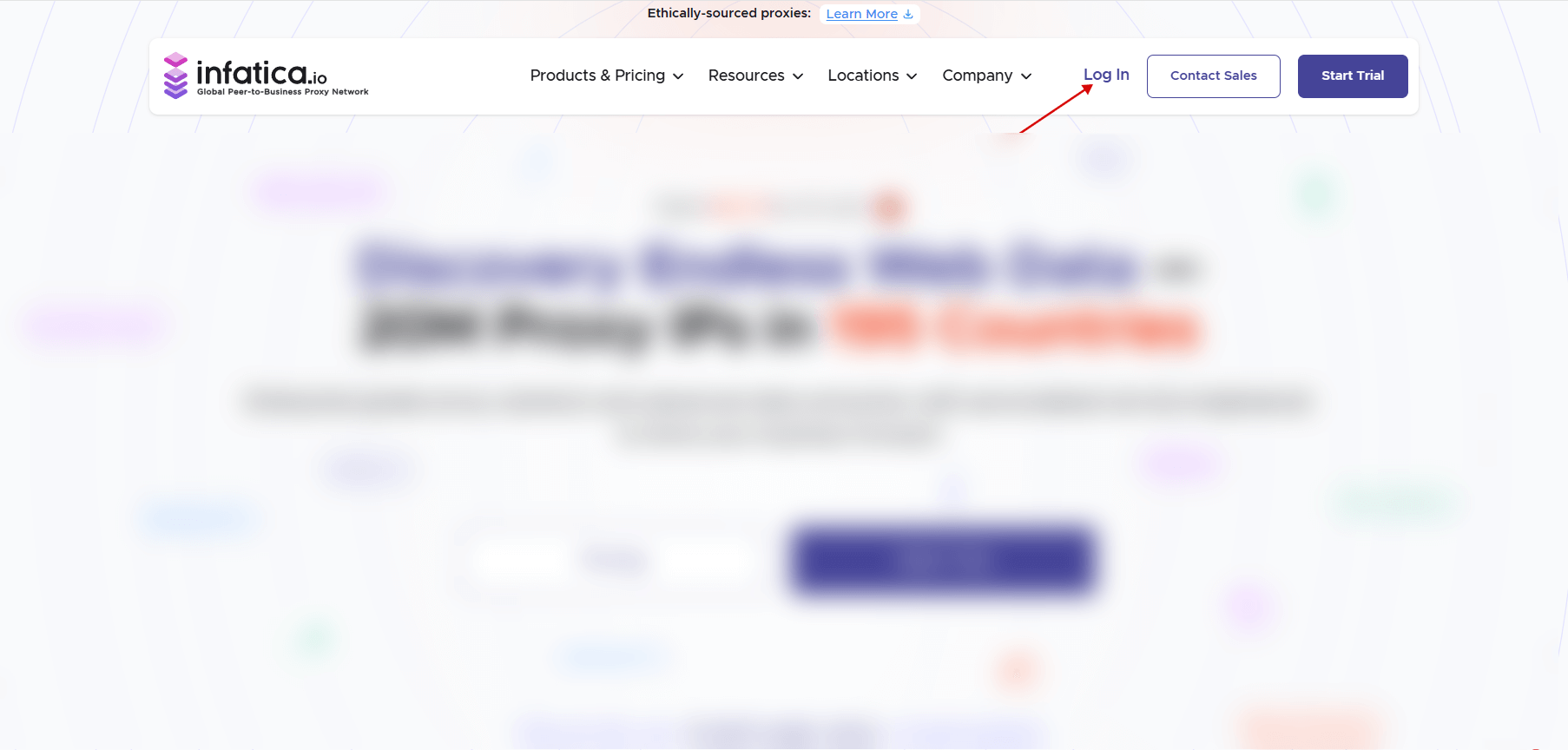
To create an account on Infatica, click the "Log in" button in the upper right corner, then click the “Create Account” button.
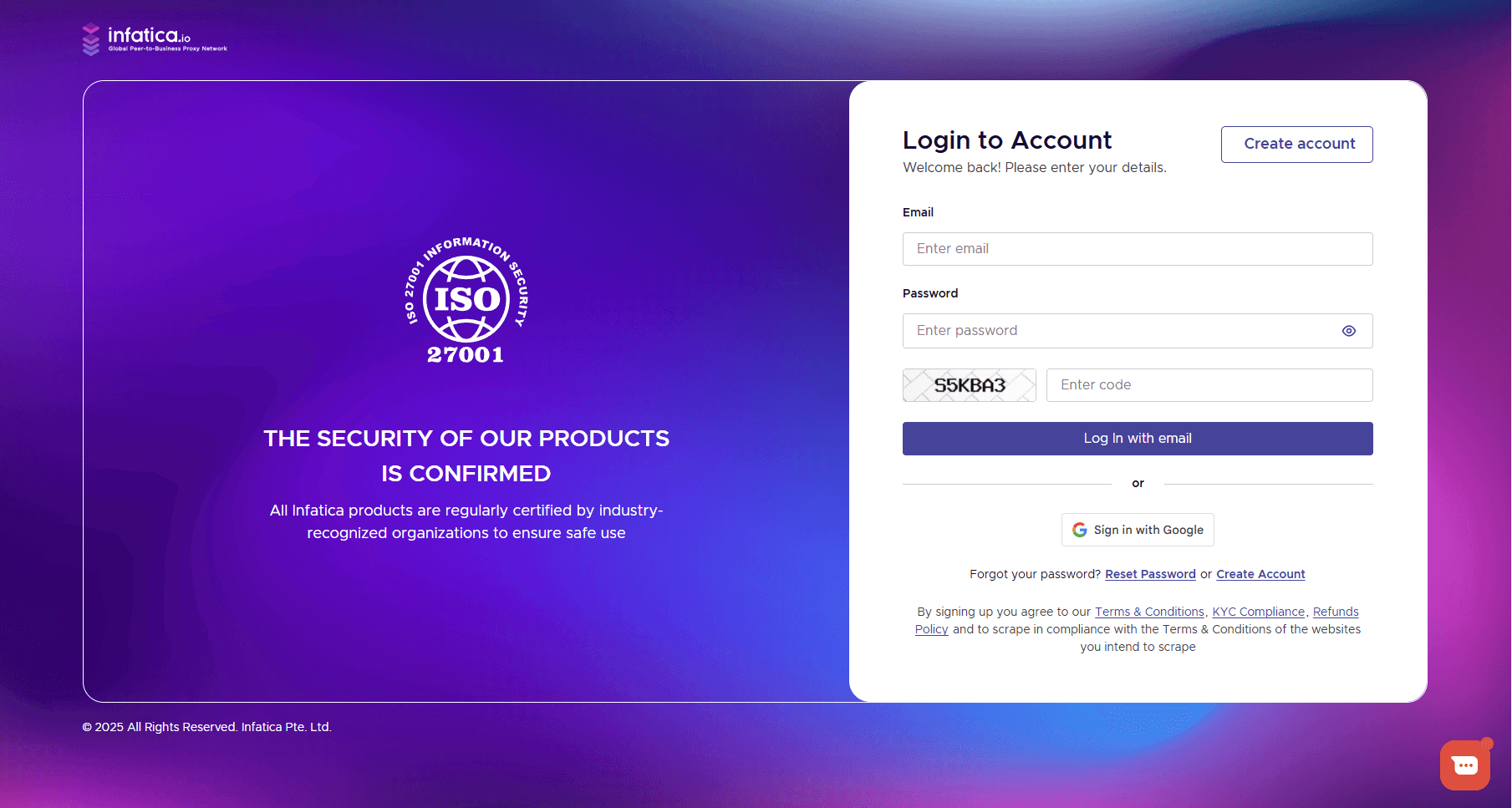
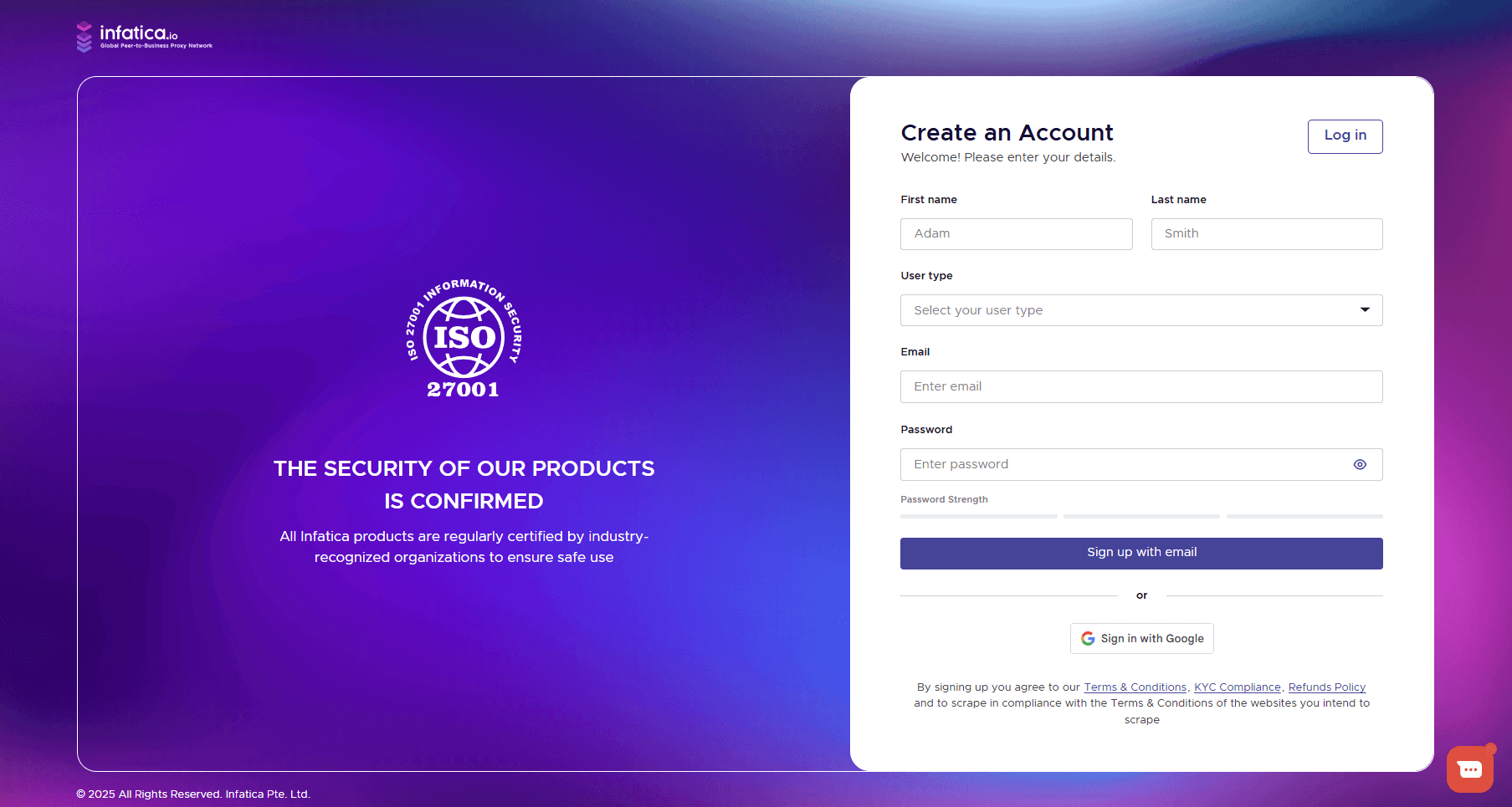
Enter your first name and last name, email, and create a password. Click the “Sign Up with email” button to confirm.
After registration, you will be redirected to the Dashboard, where you can purchase a Datacenter Proxy plan or Trial period and create proxy lists to work.
Verification process (one-time)
When you top up your balance ("Add Funds") or buy a trial/full plan (by clicking on the "Buy" buttons of any plan) you will be redirected to the verification page, where you must complete a quick KYC verification, take photos of your documents, and selfies.
Click the “Get verified” to start.

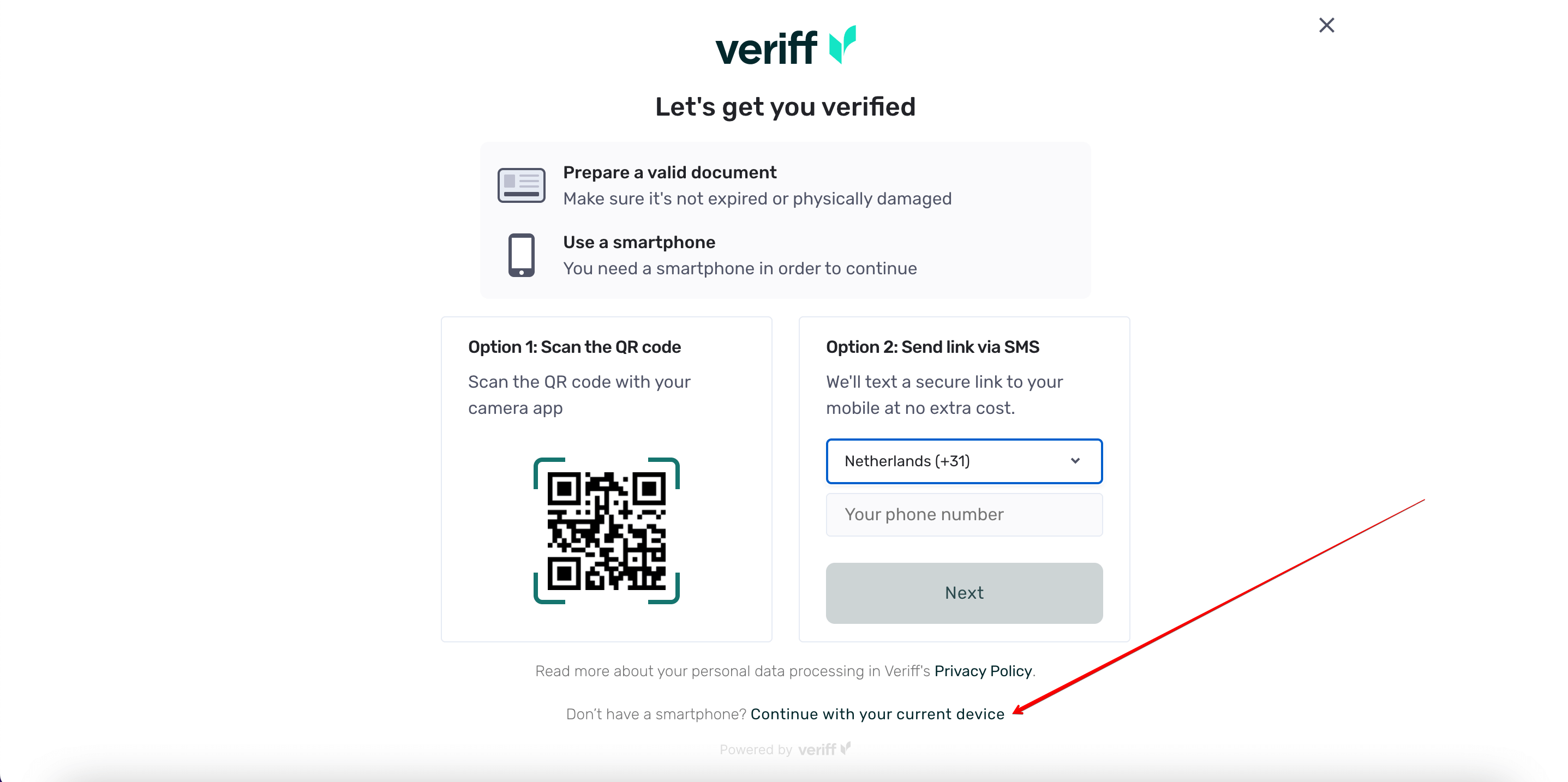
Next, you will be able to verify using your mobile phone or using your current device. Follow the instructions to continue verification.
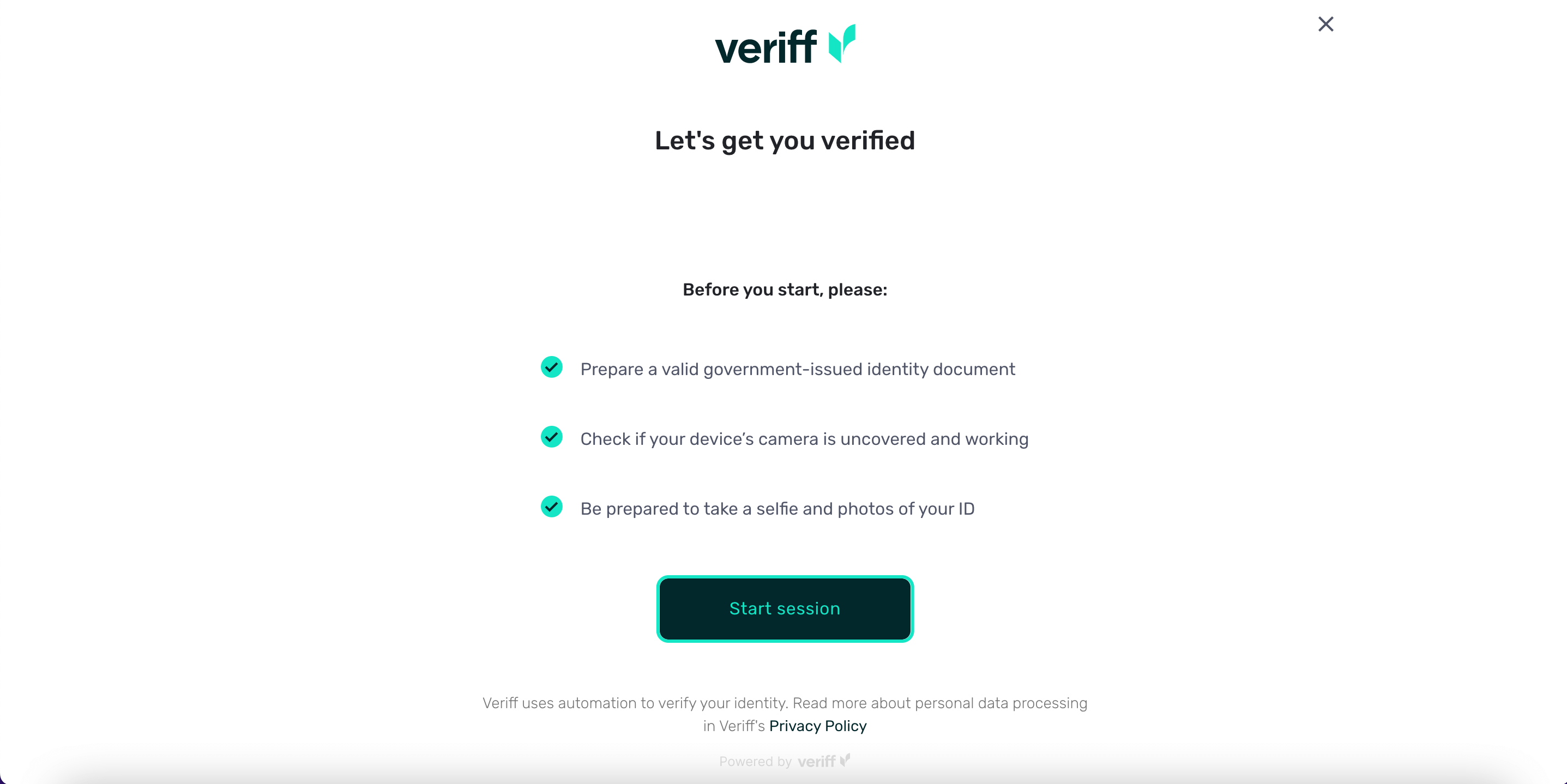
Prepare your government-issued documents and be ready to take selfies, press the “Start session” button to continue.
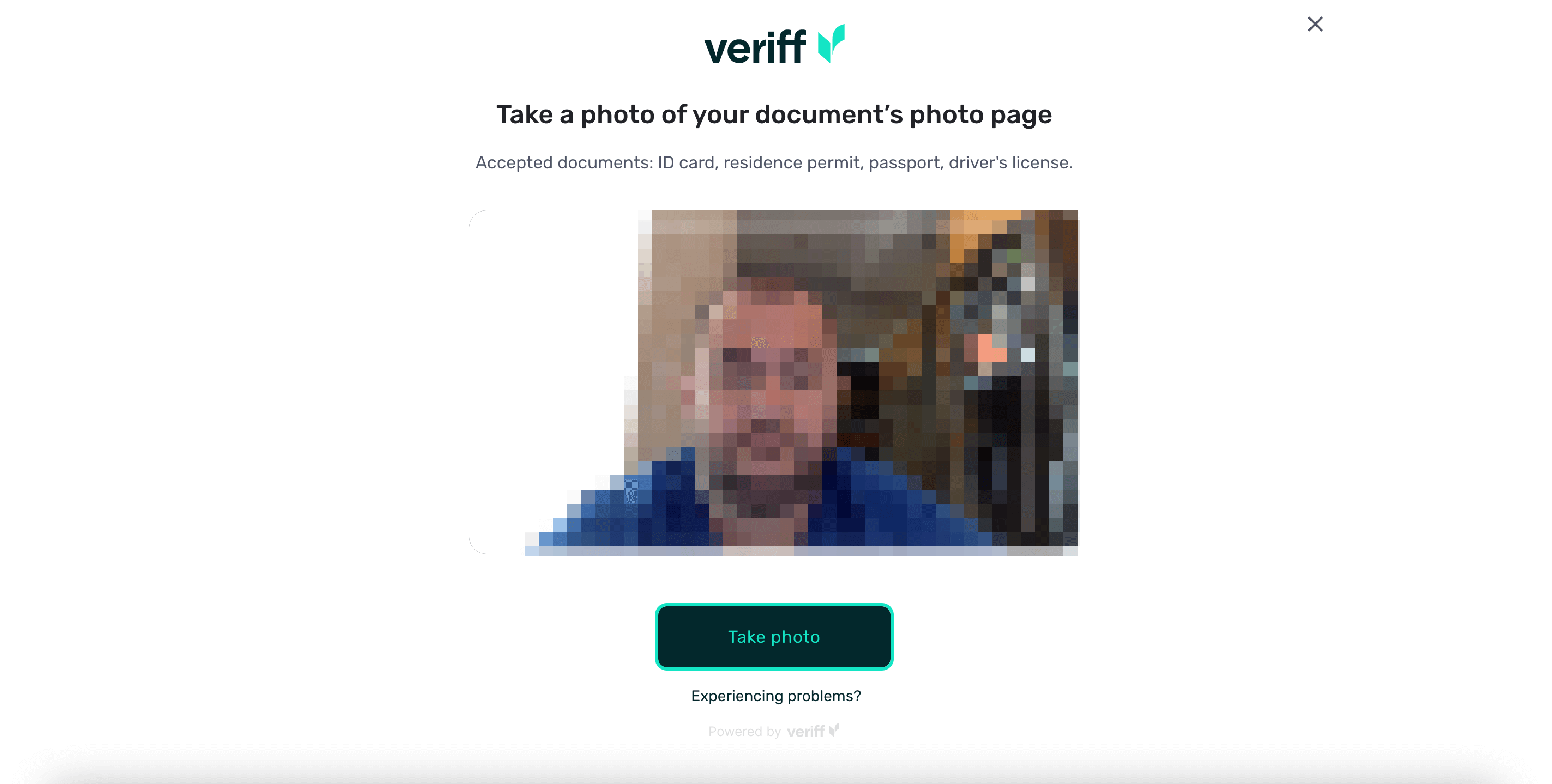
Take photos of your documents and selfies as instructed.
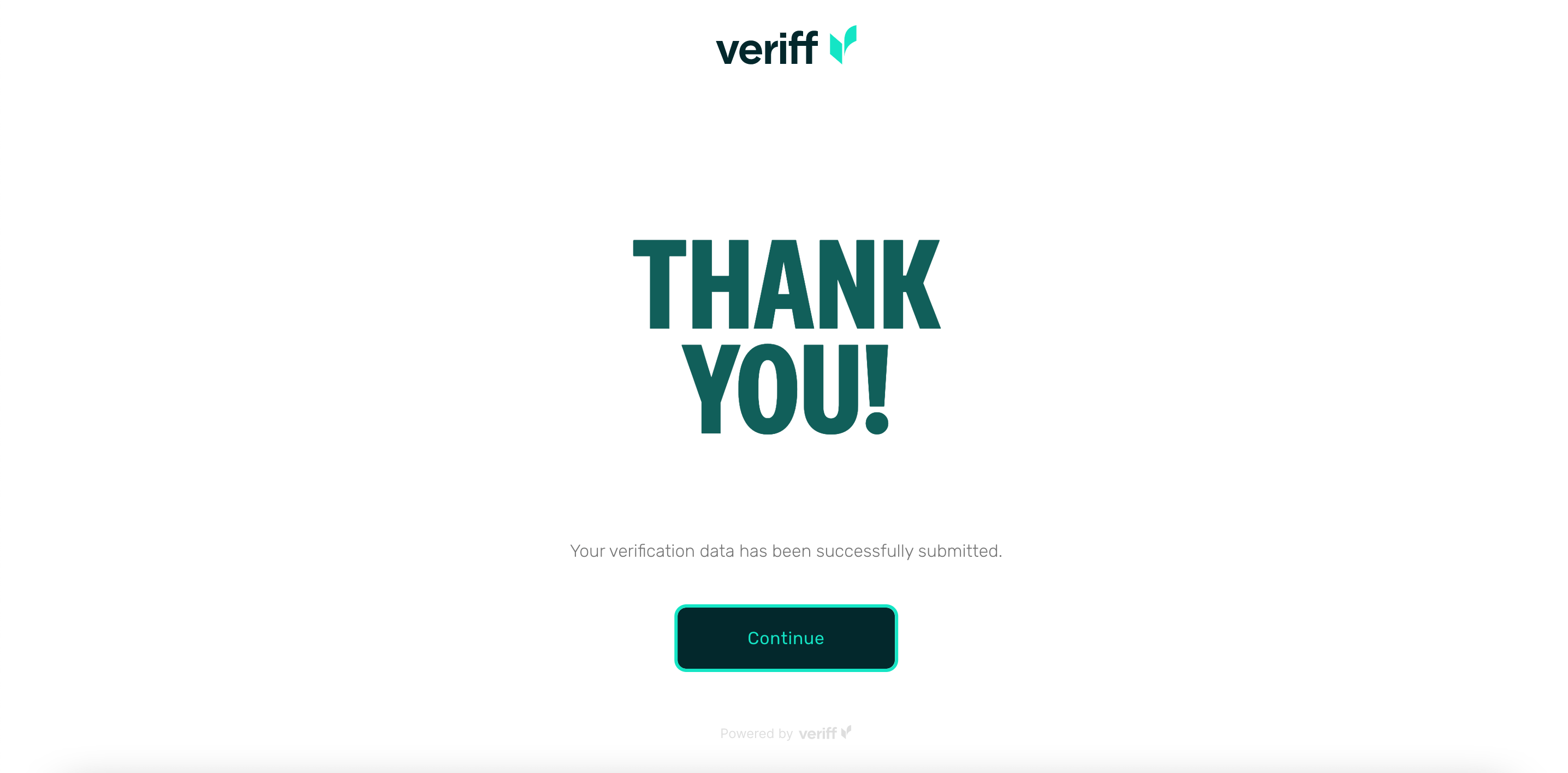
After successful verification, by clicking the “Continue” button you can purchase a plan that you need.
Purchase a Datacenter Proxy plan
To test Datacenter Proxy, you can purchase a seven-day Trial for only $3 with 5 GB of traffic. The trial is available for Credit Card and PayPal only. Also, you can buy the plan you want immediately, click the "Buy now" button.
To purchase a PAYG plan, simply add funds to your balance first. On the purchase page of the proxy type you need, click Buy Now, add funds, then return to the same page. From there, click Buy Now again in the PAYG section to activate your PAYG plan, generate proxies, and start using them. If you already have enough funds, just click Buy Now in the PAYG section to complete the purchase and generate proxies.
Paypal and Stripe
Please note that when choosing PayPal or Stripe, the purchase is processed through Chargebee. If you encounter any issues during the payment process, we recommend using an alternative payment method (other than PayPal/Stripe). This will allow you to access all available payment options, including PayPal/Stripe and others, at the invoice payment stage.
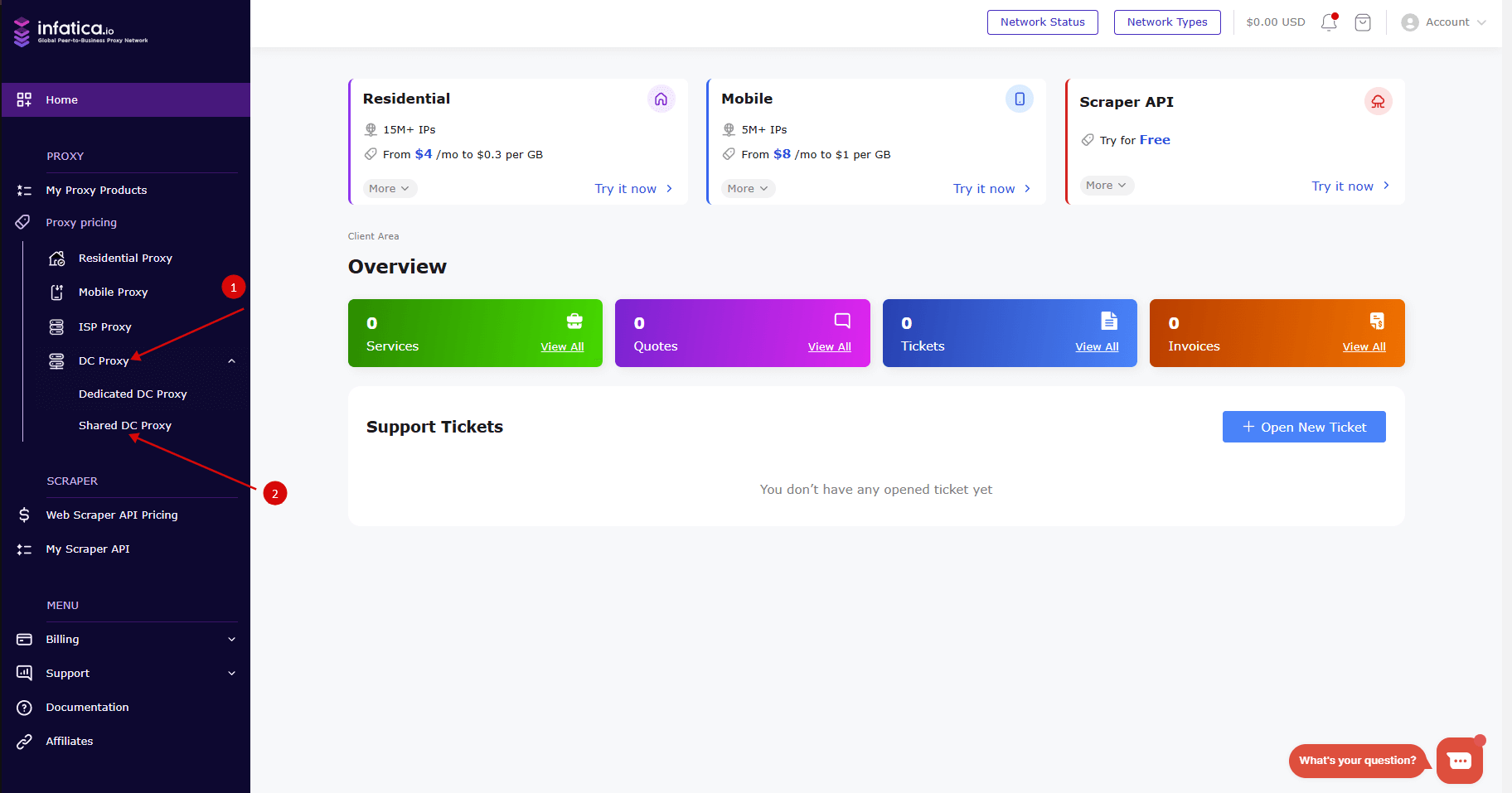
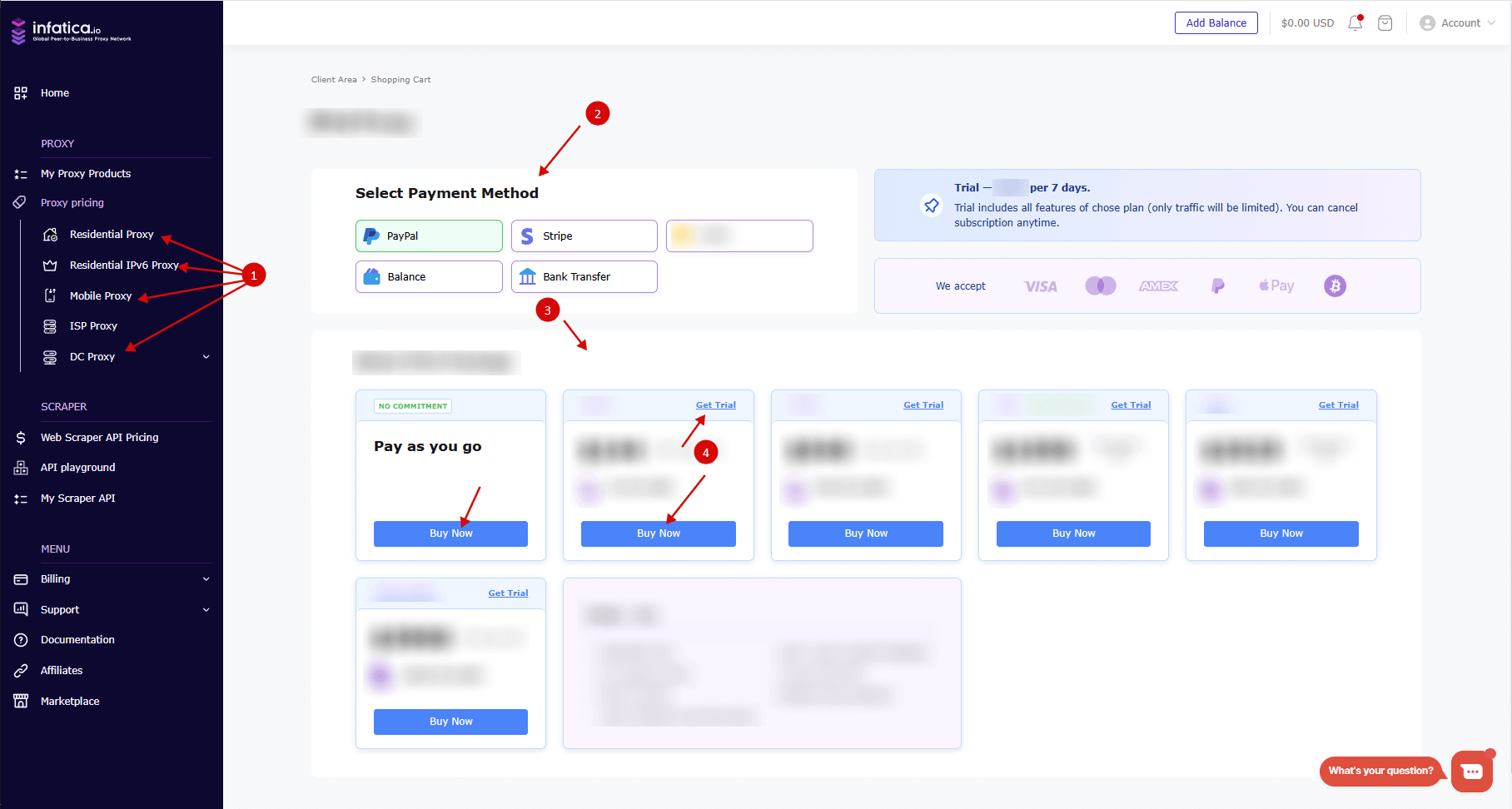
To purchase a subscription, go to the Services section on the left of your account page, click on "DC proxy" tab, select Dedicated DC Proxy, select Payment Method and click "Get Trial" or "Buy now" button.
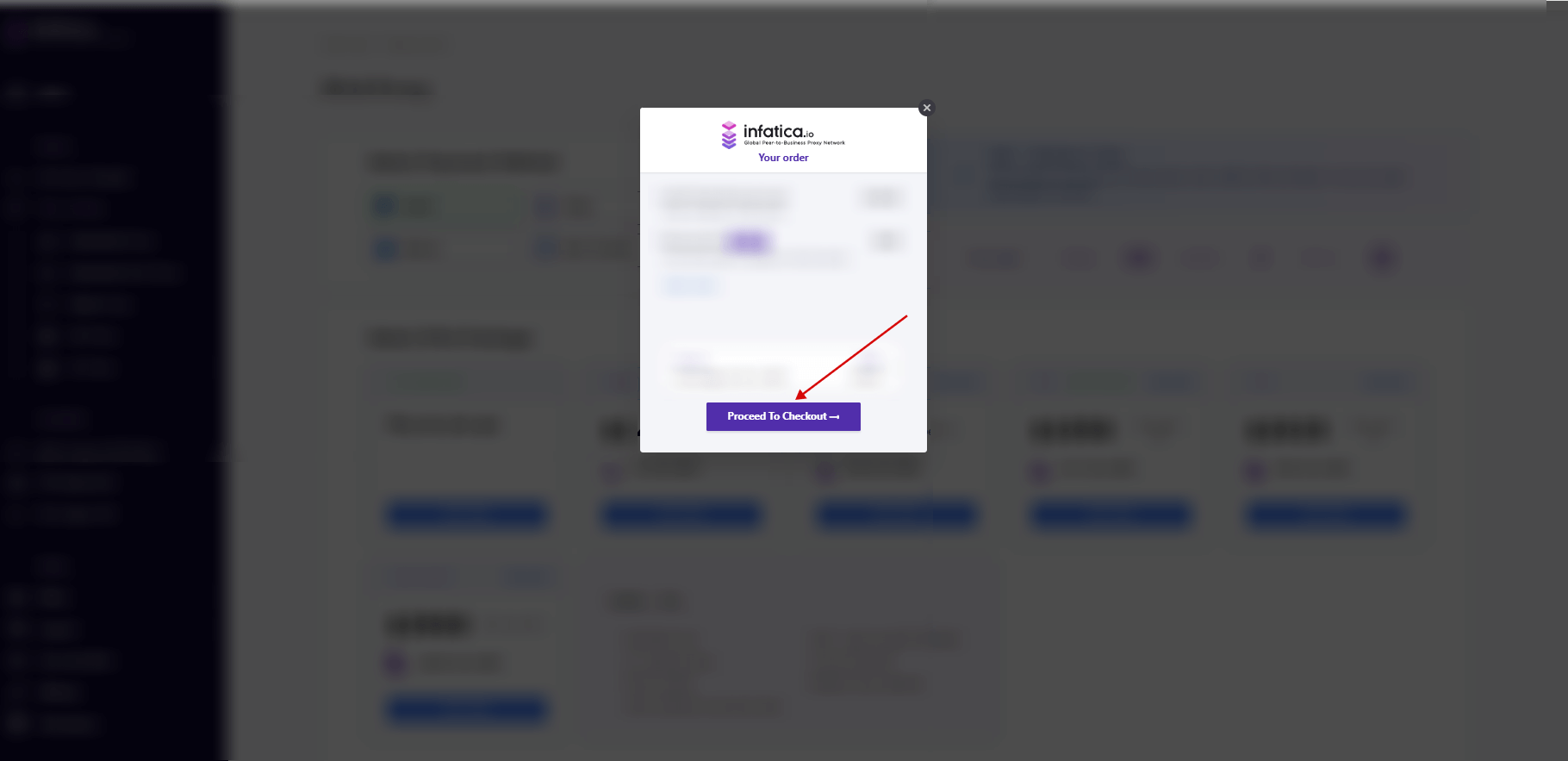
After that, you will be redirected to the Billing section, click the “Proceed To Checkout” button to purchase, then choose a payment method and click Complete order.
Other payment methods
"PayPal, Credit card, Balance, Bank transfer, and others."
To buy plan, go to the Services section in your account, select Datacenter Proxy, select Payment Method and click "Buy now" button.
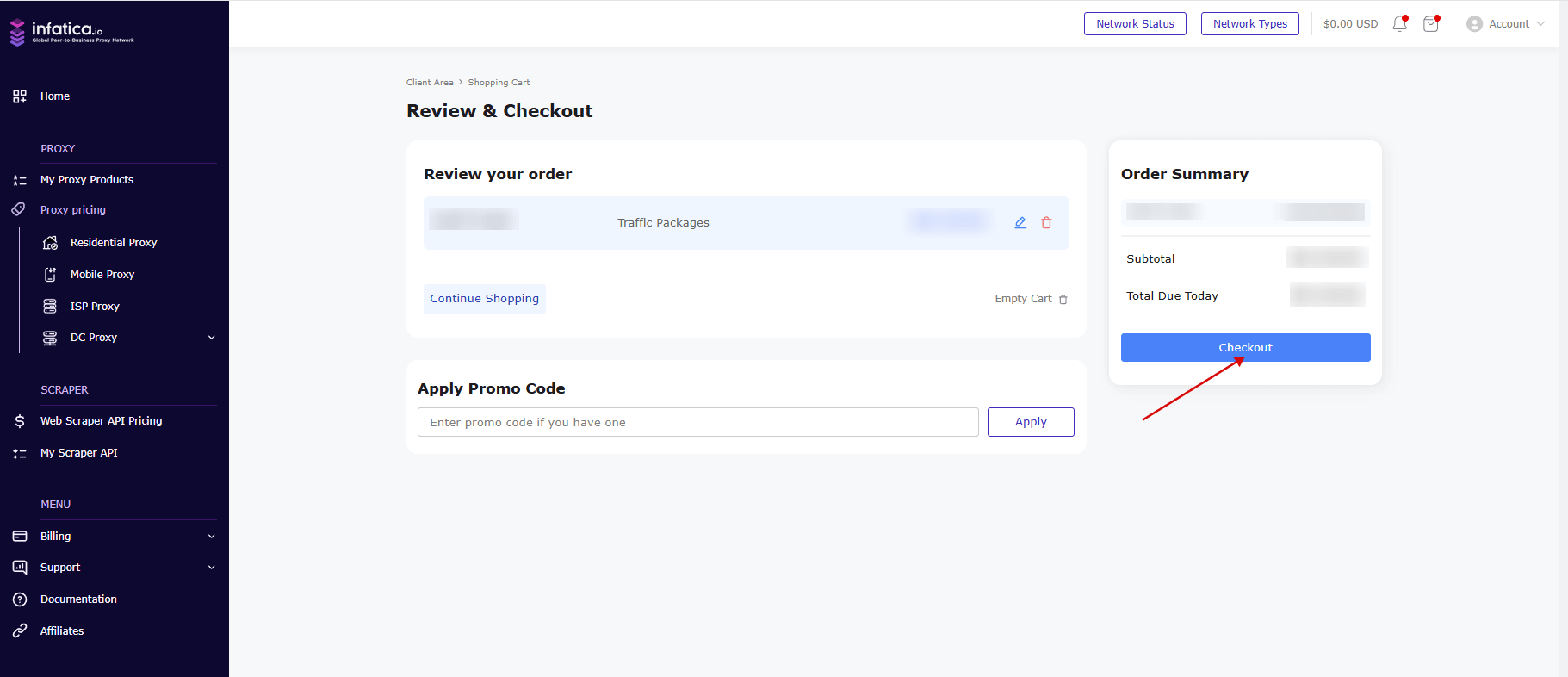
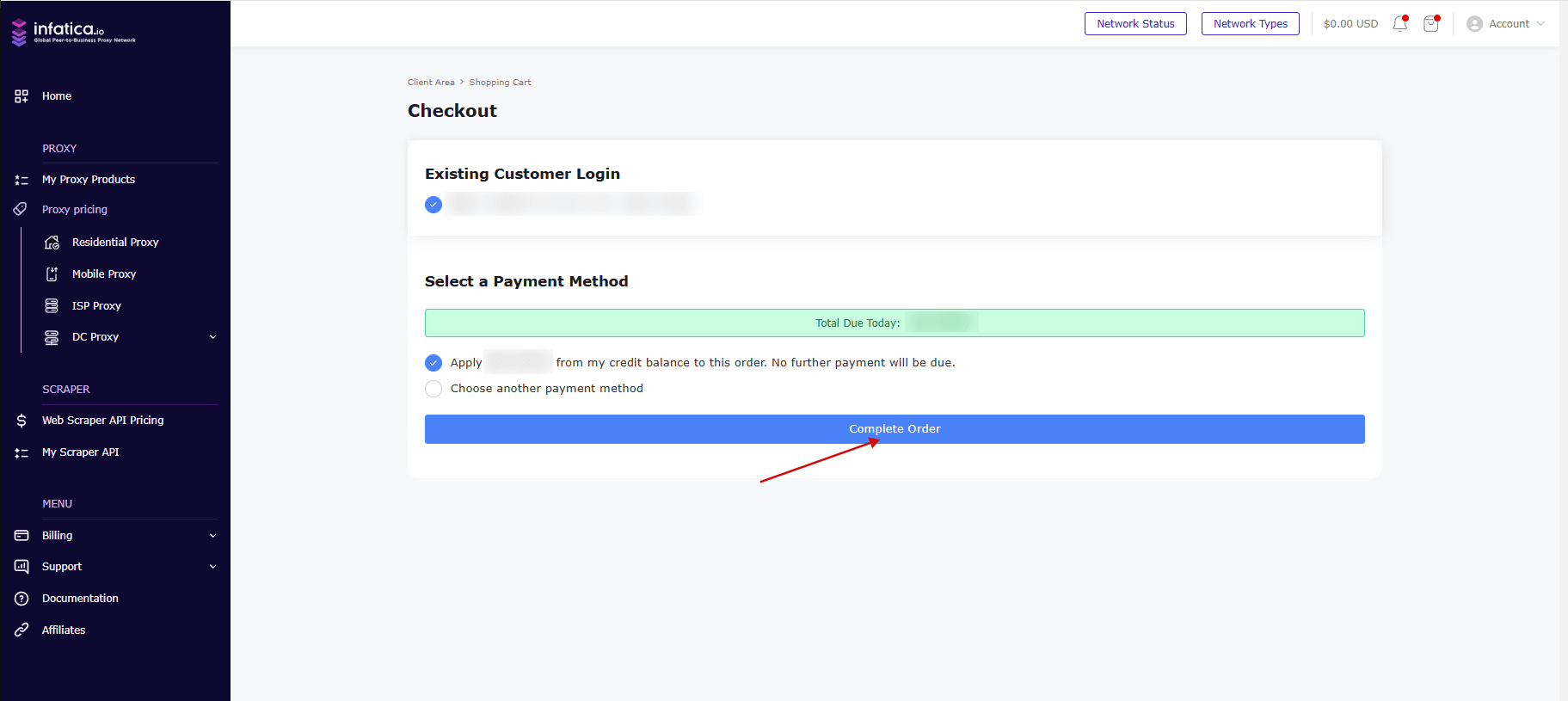
After that, you will be redirected to the Shopping cart page, click the “Checkout” button to purchase, then click "Complete order" and pay. If you have funds on your balance you can apply it from your credit balance to this order in this page.
How to create and work with a Datacenter Proxy list
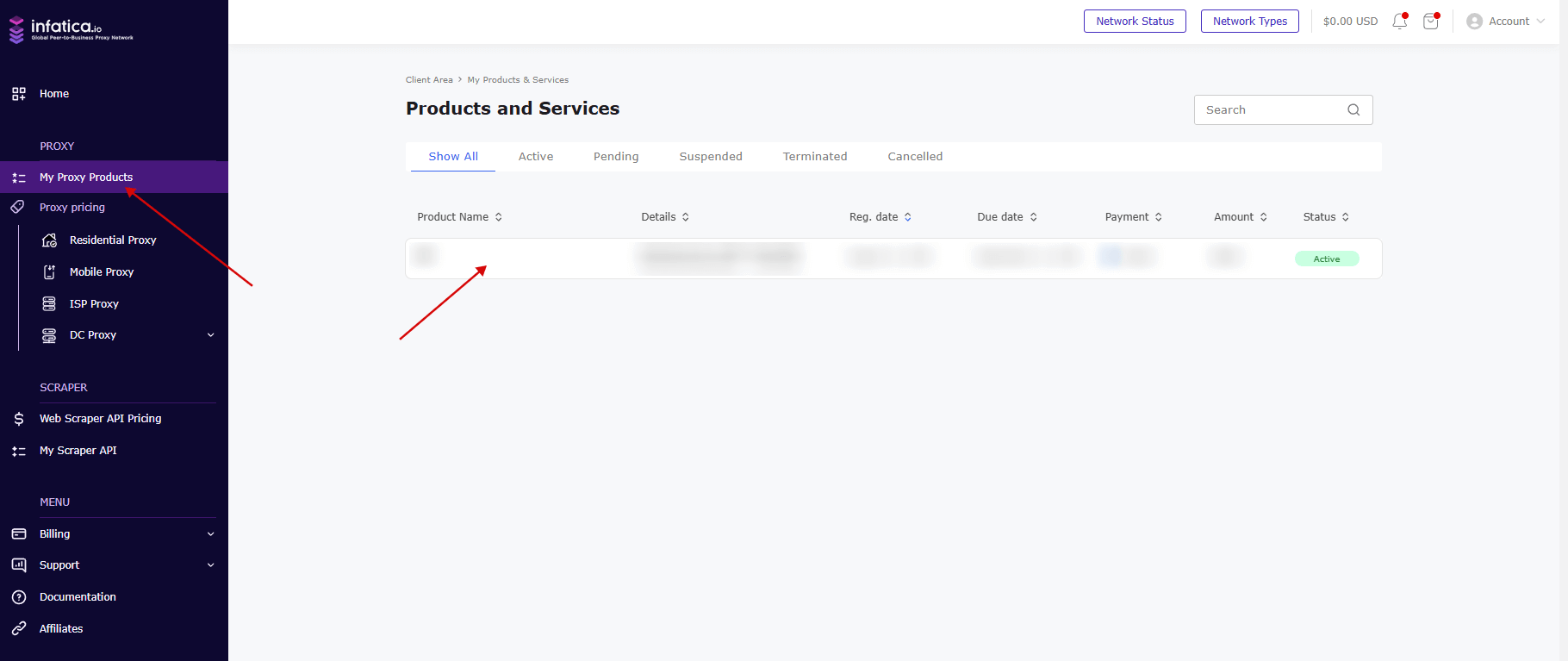
On the My Proxy Products section, click on your active Datacenter Proxy Plan and you will be redirected to the Proxy list generation page.
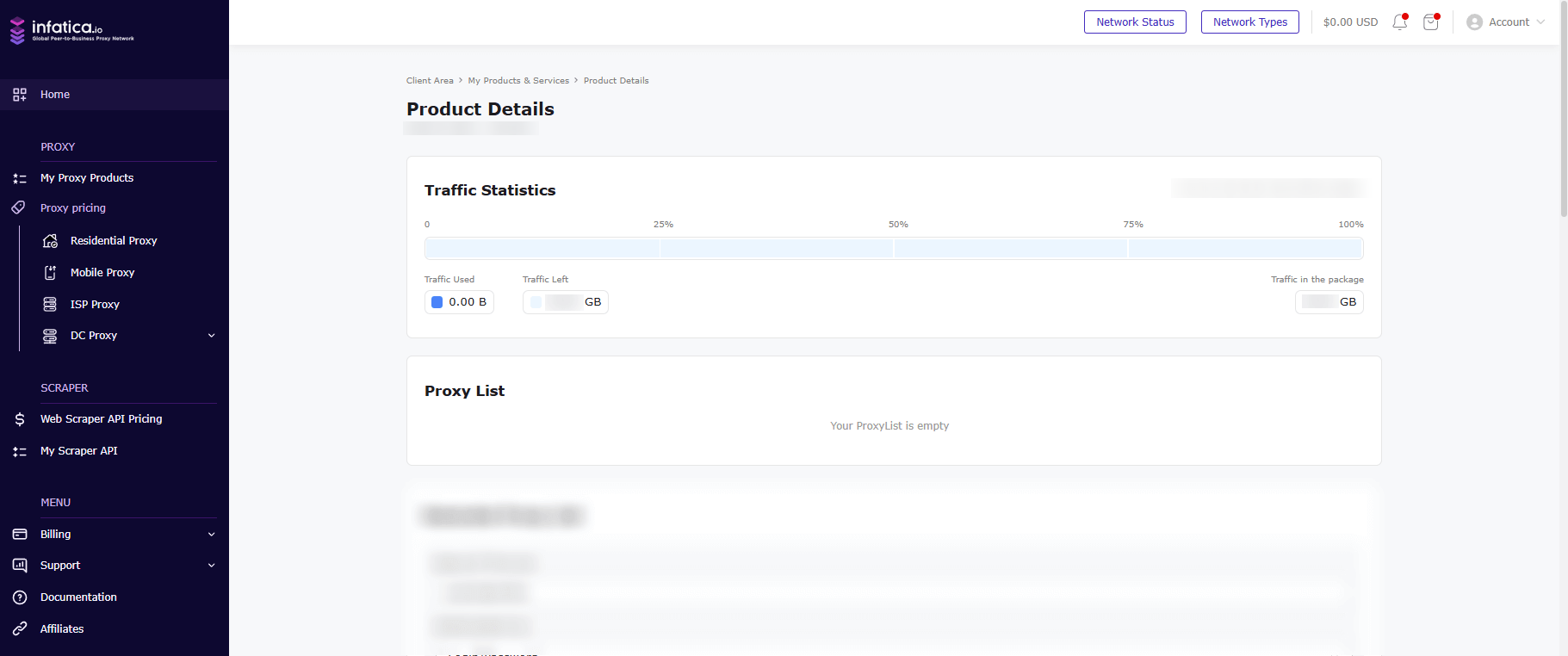
On the proxy list generation page, you will see general information about your Proxy plan, on the right side, you will see active proxy lists after they have been created.
Next, let's move on to the fields for generating a proxy list and describe them in more detail.
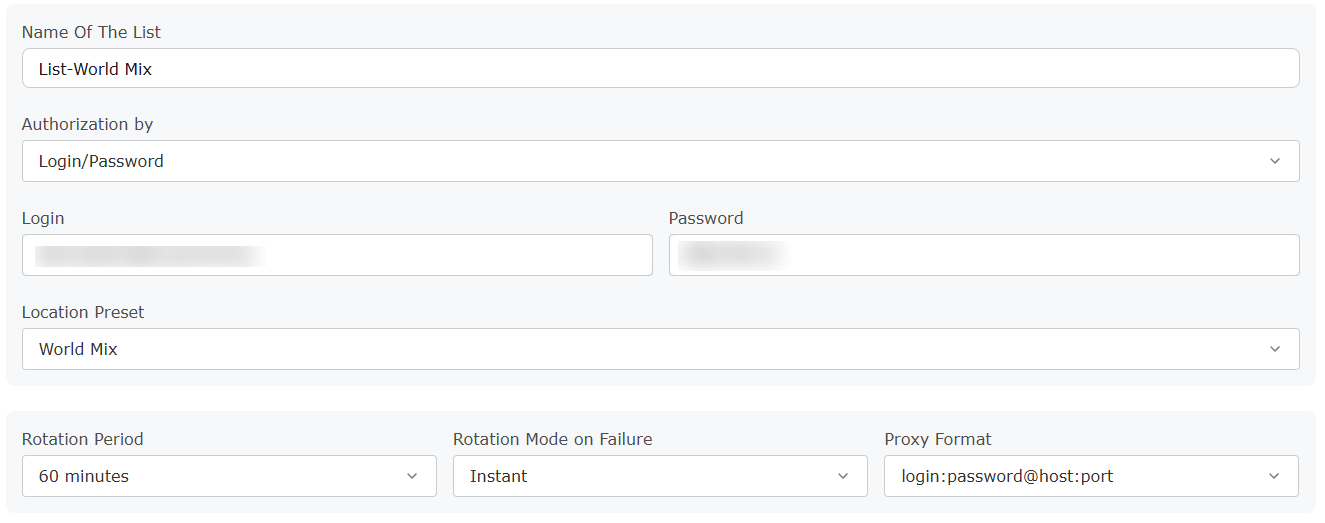
Name Of The List
The default name is List-World Mix, however, you can specify any name for your proxy list for quick identification.

The Authorization
This field contains two authorization options: login/password and IP whitelist.

If you select the login/password authorization option, you will see below the areas with the provided login and password for your proxy list.

If you choose the IP whitelist authorization option, enter the IP address, subnet, or multiple IP addresses separated by a comma in the fields below.

Location Preset
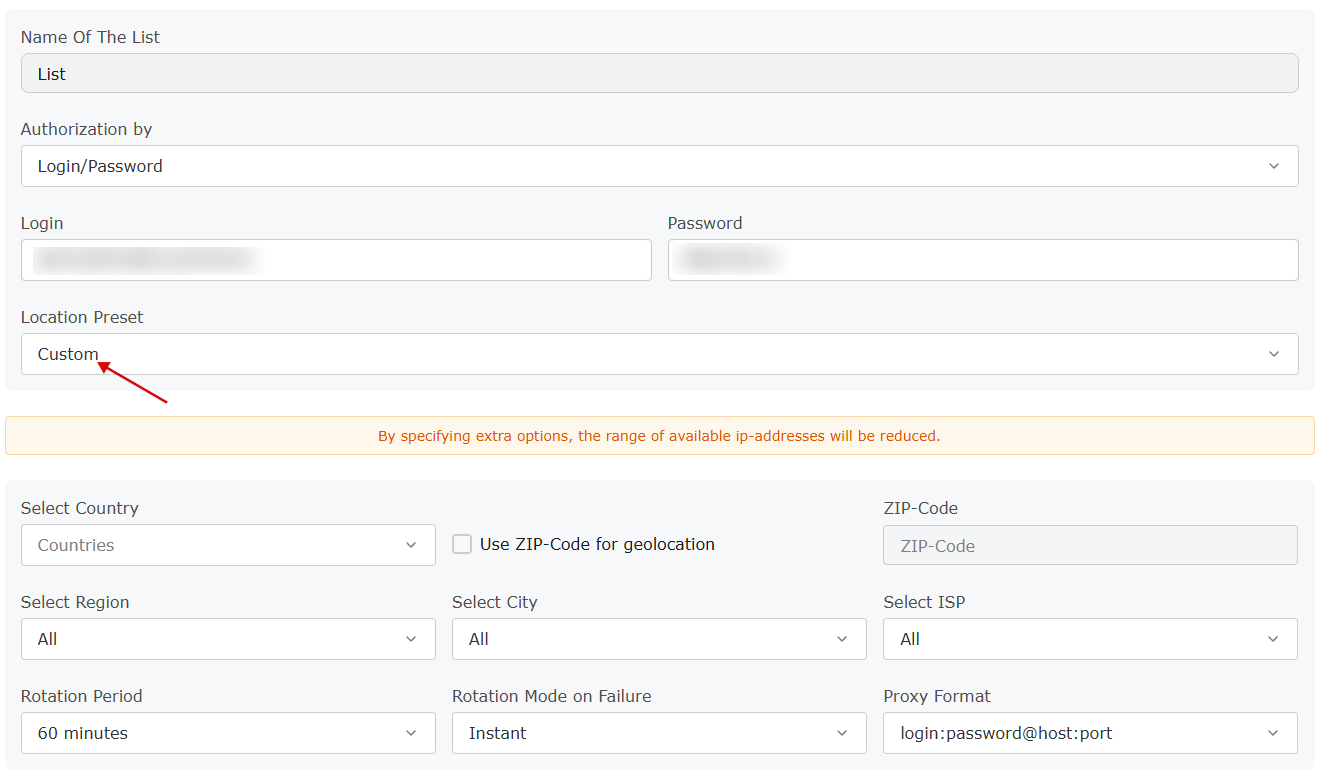
You can select World Mix, Europe, Asia, North America, Latin America and the Caribbean, Africa, Oceania, or Custom location in this field.
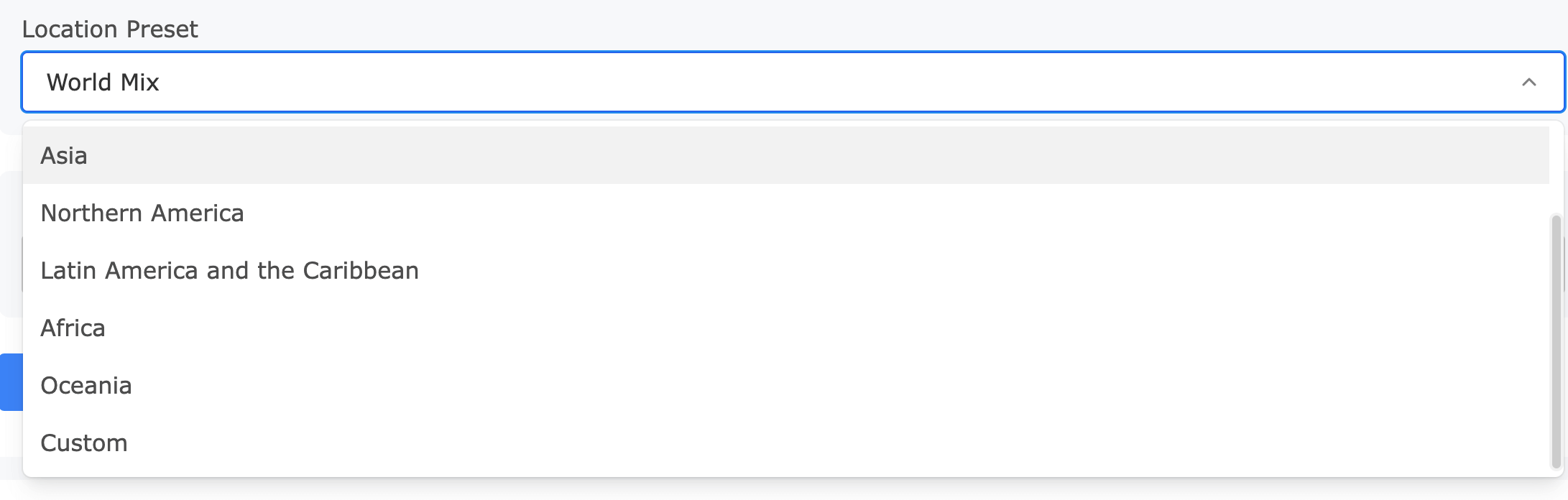
If you select a Custom location, you can additionally select Country, Region, City, ISP or specify Country and ZIP code (select Use ZIP-Code for geolocation checkbox).
Click and select Custom in the Location preset and then you can select Country, Region, City, ISP or ZIP.
Rotation period
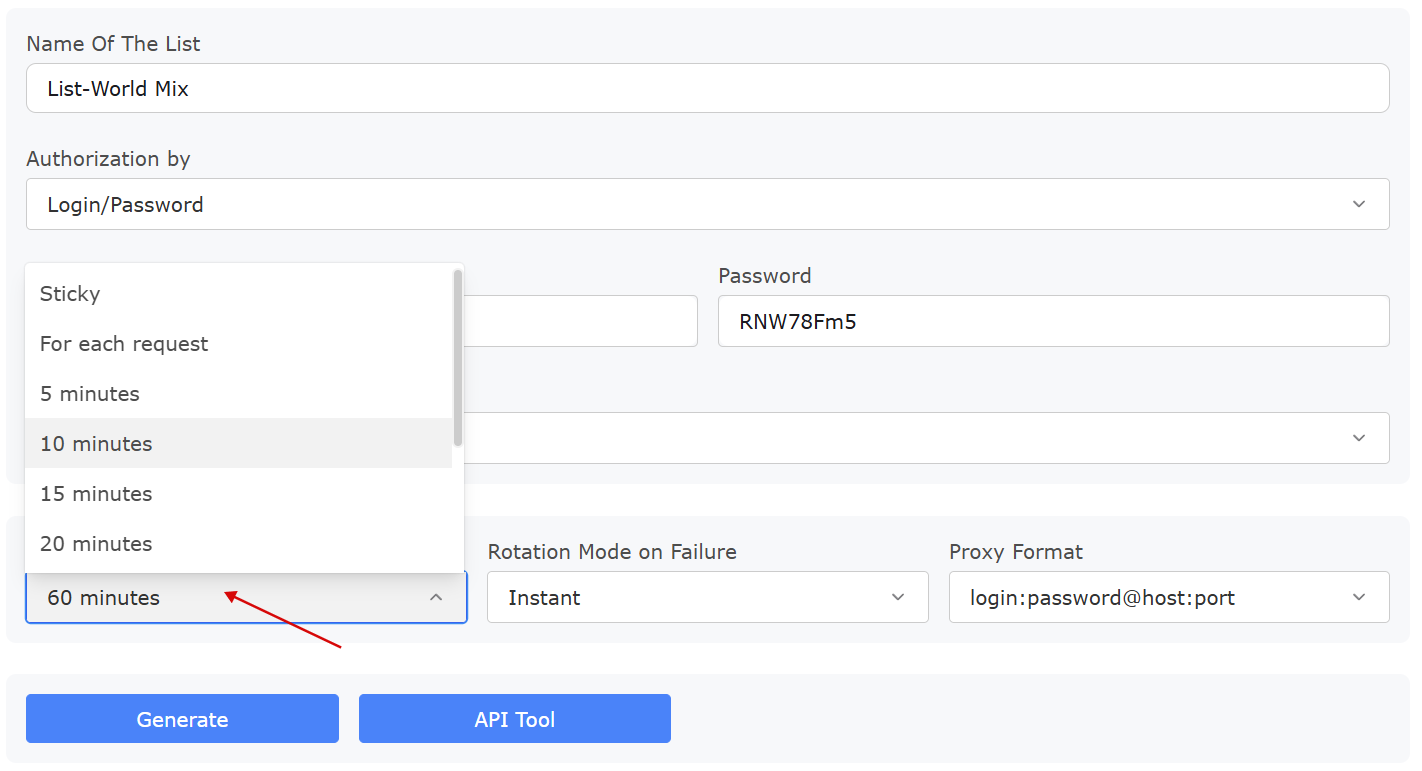
You can choose between different proxy rotation options: timed rotation (every 5/10/15.../60 minutes), rotation with each request, or sticky. Proxies are available for a set period of time after which they are rotated. If a proxy becomes unavailable, it may be rotated earlier than you specified.
Rotation mode
Rotation mode controls what happens when no exit node is available during request routing.
| Value | Behavior |
|---|---|
Instant | Instant rotation (default). If no exit node, then try to immediately find another one. |
5 seconds | 5-second delay. If no exit node, then there will be a response error for a while until inactive exit nodes will be excluded from the list and the port is assigned a new IP. |
No rotation | No rotation. The proxy assigned to the port will function only while the IP is available. |
Proxy format/protocols
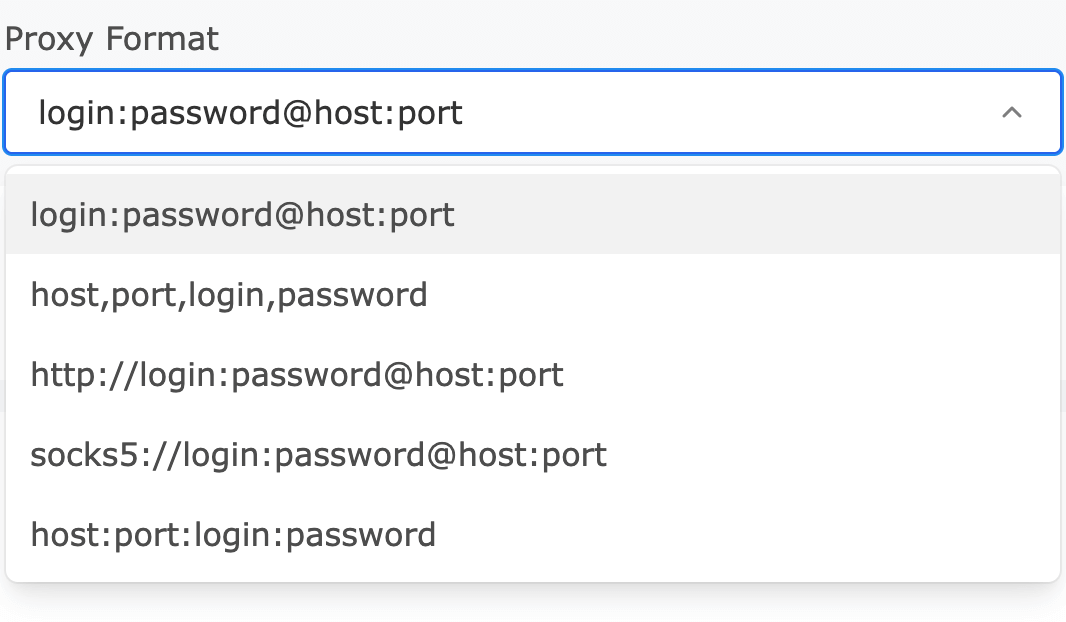
Here you can select proxy formats
login:password@host:porthost,port,login,passwordhost:port:login:password
As well as HTTP or SOCKS5 protocols.
http://login:password@host:portsocks5://login:password@host:port
After all the settings, click the Generate button and your proxy list will appear at the top right.
Proxy lists
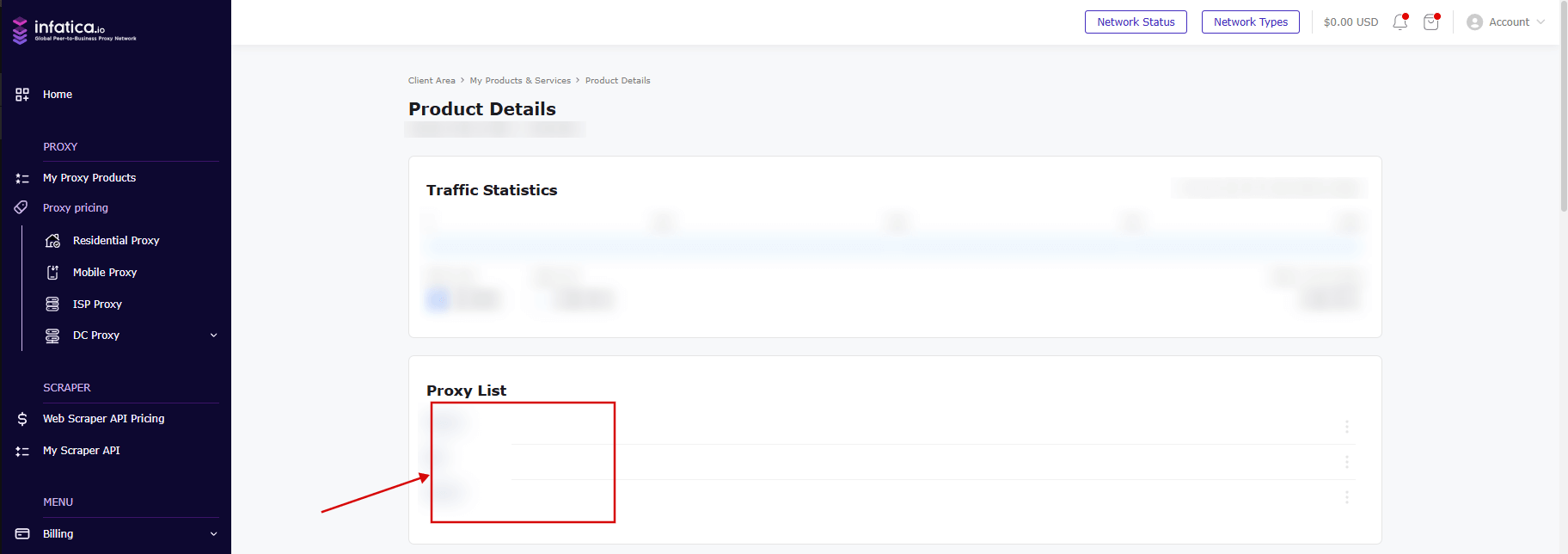
You can look for all the lists you have created in the "Proxy List" section of your proxy plan. Click on the desired proxy list and you will see a list of your proxies for it.
Traffic usage
By plan/subscription:
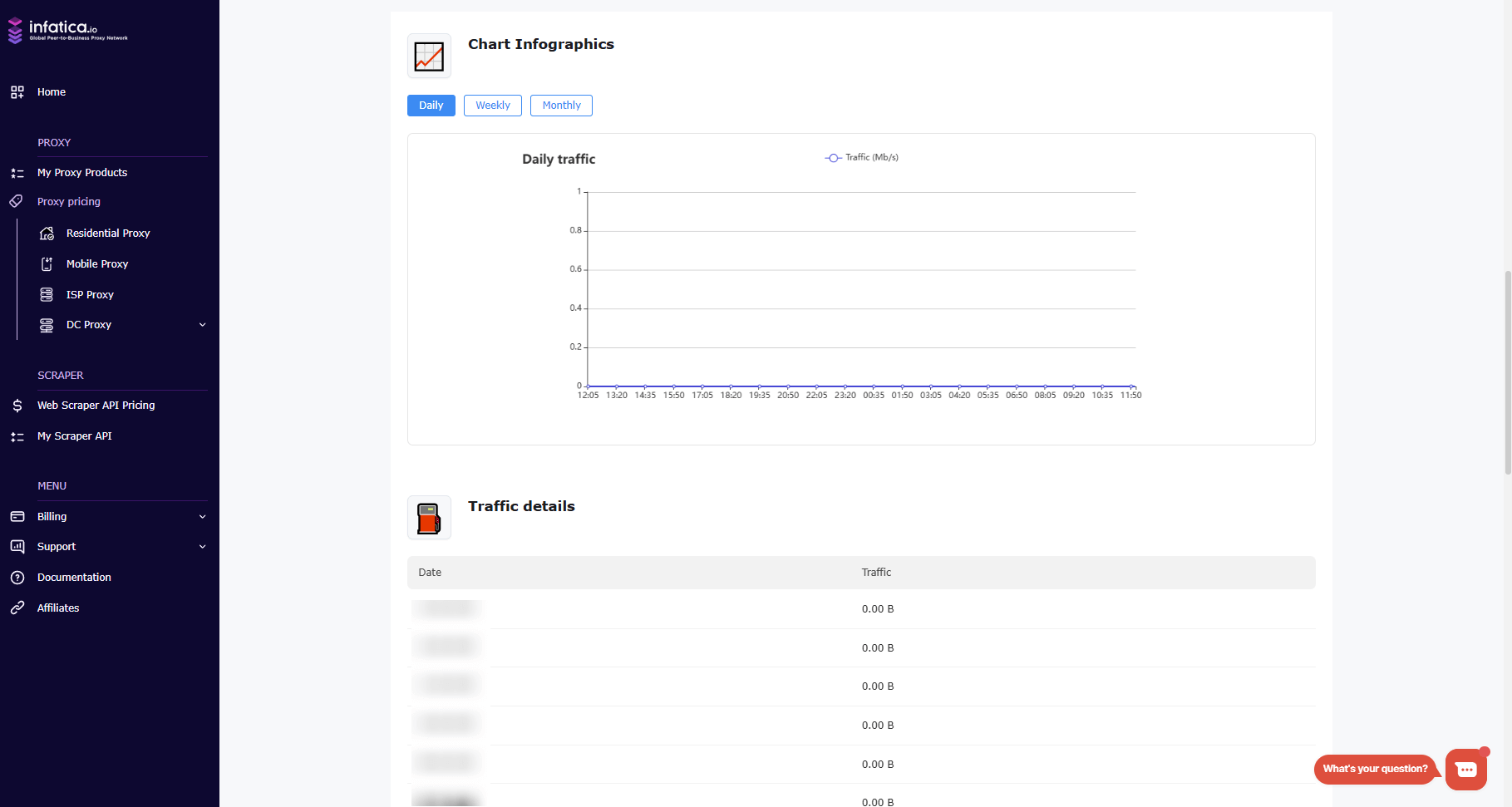
Below you will see statistics on proxy traffic usage.
By proxy list:
Click on the three-dot button to the right of the proxy list name and click on the Traffic button. In the link that opens in a new window, you will see statistics on traffic consumption in the current proxy list by days.

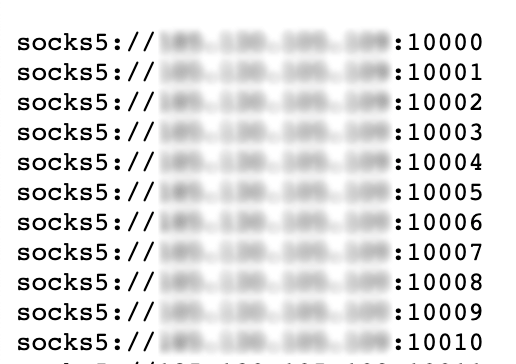
Now, let's go to the proxy list and open it. The proxy list has up to 1000 ports that you can work with at the same time. You can use Infatica's ethical Residential Proxies with any software or in your browser.
For simultaneous requests, use different ports in the range 10000-10999.
Important note: Each IP address port corresponds to a unique IP address (e.g. pool.infatica.io:10005 and pool.infatica.io:10006 are different IPs).
IP Whitelist authorization
If you create a proxy list and use IP Whitelist authorization, the proxy list will have the format Host:Port.
IP whitelists have priority over regular proxy lists, which causes incompatibility between requests from different lists. For example, the 123.123.123.123-List-ByIP-US whitelist has the highest priority. If you're sending requests from 123.123.123.123 to a different regular list, it will be ignored and the requests will default to using the 123.123.123.123-List-ByIP-US whitelist.
Delete proxy list
To delete a list of proxies, click on the three dots located on the right side of the list you wish to delete, and then click the 'Delete' button.

Cancel plan/subscription
To cancel your subscription, go to Account in the upper right corner of your personal account, then click "Subscriptions" and click "Cancel".
Latency and routing
pool.infatica.io is a GeoDNS (geo-routed DNS) hostname: it resolves to the nearest Infatica gateway based on your server's location. GeoDNS is a technology that helps route your request to the closest available Infatica server, minimizing the time it takes to connect and reducing latency.
Available gateway locations:
- NL: Amsterdam
- US: New York, California
- JP: Tokyo
What is GeoDNS and how does it impact performance?
When you make a request, GeoDNS directs your request to the nearest gateway based on your geographic location. This ensures that your connection is as fast as possible, as data doesn’t have to travel long distances. For example, if you're in the USA, your request will be routed to a gateway in the USA, reducing latency and improving speed.
End-to-end latency
End-to-end latency is the total time it takes for a request to travel from the client’s software (the application using the proxy) to the Infatica gateway, through the exit node (the proxy where requests are made), and finally to the target website.
To minimize latency:
Client (your server) ⇔ Infatica gateway ⇔ Exit node (proxy) ⇔ Target website
To reduce latency:
- Keep the client's software close to the resolved gateway. The closer your server is to the gateway, the faster your connection.
- Choose an exit node (proxy) location near the target website (Country/Region/City targeting). For example, if you're targeting a website in the USA, select an exit node in the USA to reduce time spent on routing.
- Reuse connections with HTTP keep-alive and prefer using HTTP or SOCKS5 protocols when speed is critical. This allows for faster communication by avoiding the overhead of repeatedly establishing new connections.
Examples:
USA Example:
Client (USA)⇔Infatica gateway (USA)⇔Exit node (USA)⇔Target website (USA)In this case, all the hops are within the United States, providing minimal latency due to geographic proximity.
Netherlands Example:
Client (NL)⇔Infatica gateway (NL)⇔Exit node (NL)⇔Target website (NL)Here, all components are located in the Netherlands, ensuring fast response times due to their geographic closeness.
Japan Example:
Client (JP)⇔Infatica gateway (JP)⇔Exit node (JP)⇔Target website (JP)In this case, all the hops are within Japan, providing minimal latency thanks to geographic proximity and fast local routing.
Suboptimal / High-latency examples:
Exit node far from target (CA → US → NL → USA):
Client (CA)⇔Infatica gateway (USA)⇔Exit node (NL)⇔Target website (USA)The gateway is in the USA (closest to the client in Canada), but the exit node is located in Europe (Netherlands), far from the target website in the USA. This increases latency and slows down request-response times.
Exit node far from target (ID → JP → IN → USA):
Client (ID)⇔Infatica gateway (JP)⇔Exit node (IN)⇔Target website (USA)The gateway is in Japan (closest to the client in Indonesia), but the exit node is in India, far from the target website in the USA. Even though the client and gateway are relatively close, requests take longer due to the distant exit node.
Why does it matter?
By ensuring the client, gateway, and exit node are close to each other, you minimize the time it takes for your requests to travel across the network, resulting in faster response times. This is especially important for tasks that require high performance, like web scraping, data collection, or automated testing.